Route Monitor Cables Through a Desktop Carrel Cleanly
Founder & Workspace Ergonomics Specialist at Desktop Carrel · Certified Professional Ergonomist (CPE), WELL Accredited Professional (WELL AP) · 13+ years testing acoustic privacy panels, modular carrels, and productivity workspace ergonomics
Routing monitor cables through a desktop carrel is fiddlier than doing it on a normal desk. Carrels have solid back panels, no rear access, and often a strict no-drill rule attached to the furniture. That combination turns a simple cable run into a genuine planning job.
In our research, most carrel setups fail for one of two reasons. Either the cables are too short to reach a power source, or the routing path is blocked by a fixed modesty panel. Per VESA guidance, every cable has a minimum bend radius of roughly four times its outer diameter, and ignoring that number causes intermittent signal loss within months.
Here's how to plan the route before you touch a single cable.
how to route monitor cables through a desktop carrel
Route monitor cables through a desktop carrel by running them along the back edge, not across the desk surface. Use a clamp-on grommet or adhesive raceway if drilling isn't allowed. Bundle cables with velcro ties every 6 to 12 inches.
Leave slack loops at both ends. Test the full monitor arm range before you call it done.
Why Carrels Are Not Desks, and Why That Changes Everything
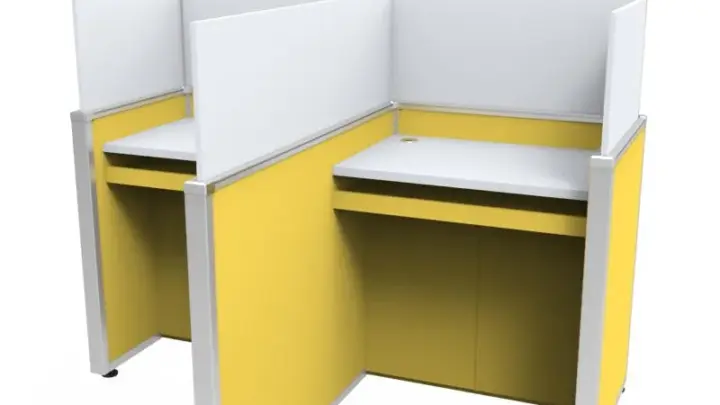
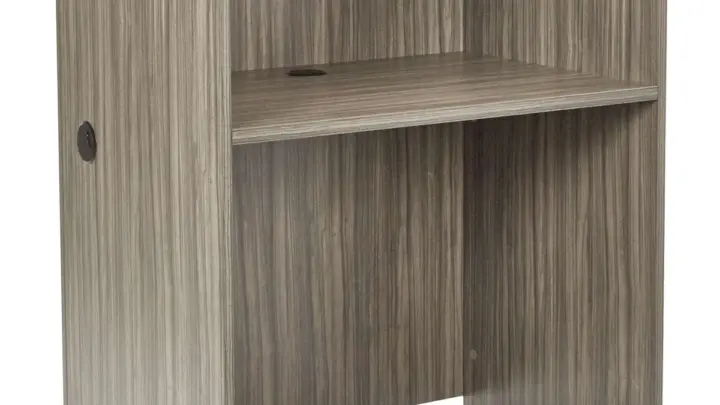
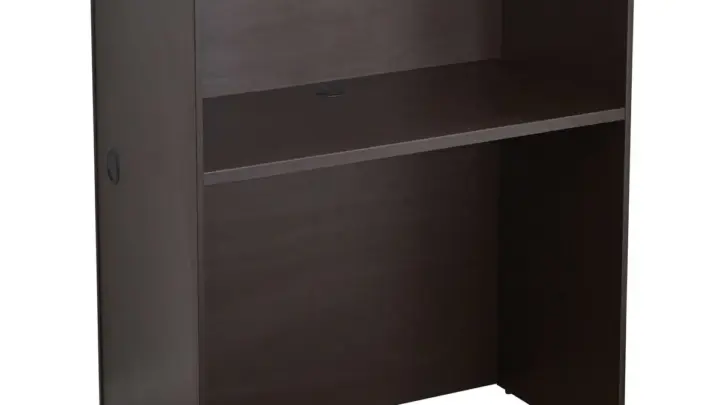
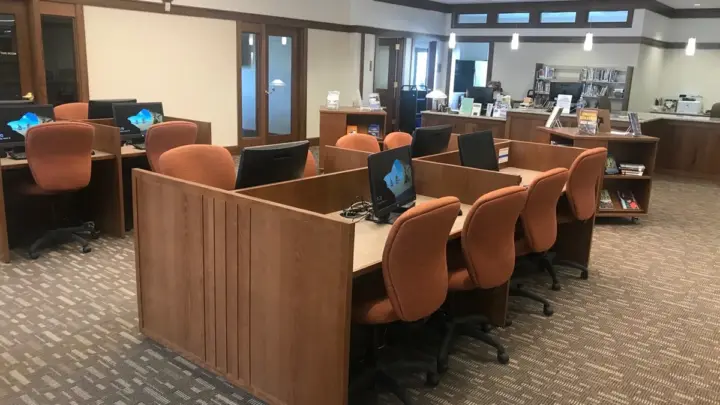
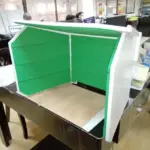
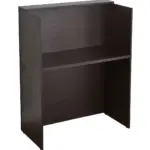
Carrels are built for privacy, not cable access. A typical study carrel has three fixed panels, a solid back wall, and a work surface that's often laminate over particleboard. There's no rear cutout on most library models.
Office cubicle carrels swap the wood for fabric panels, but they still block you from fishing a cable straight down the back.

Image source: Web (Bing) / trip.arrowheadsabroad.com (Web image (fair-use with source credit))
That changes the whole approach. On a normal desk, you drill a grommet, drop the cables through, and you're done. On a carrel, you often can't drill at all.
Even when you can, the modesty panel beneath the desk usually blocks the drop path.
So the route has to go sideways, along the back panel, or up and over through a raceway. Those are the three paths that actually work.
The three carrel types you'll run into
- Library carrel. Solid wood or laminate, fixed back panel, no rear access. Assume no-drill until facilities says otherwise.
- Office cubicle carrel. Fabric or metal panels, sometimes with a shared raceway between units. Panel caps often pop off.
- Home carrel. Usually MDF or particleboard, thinner top, and you own it, so drilling is fine.
If you don't know which one you have, that's your first job. It decides everything else.
First, Check What You're Allowed to Drill
Drilling a carrel you don't own is the single biggest mistake we see. Per university facilities policies, modifying library furniture can void warranties, breach lease terms, and in some cases restrict building access. That's not a scare tactic.
It's a common clause in academic furniture contracts.
The rule is simple. If the carrel belongs to a library, university, employer, or landlord, ask first. If you can't get written permission, treat it as no-drill.
What "no-drill" actually restricts
- No hole saw into the work surface
- No screws into the modesty panel
- No adhesive that leaves residue on laminate
- No modification to shared raceways between units
What's still fine: clamp-on grommets, removable adhesive raceway, velcro ties, cable sleeves, and under-desk trays that hang from a clamp rather than a screw.
If you do own the carrel
If it's yours, you've got room to work. A 2-inch or 2.5-inch drill-in grommet is the cleanest solution. Use a hole saw at the back corner of the work surface, not the middle.
That keeps the cable drop inside the carrel footprint and out of sight.
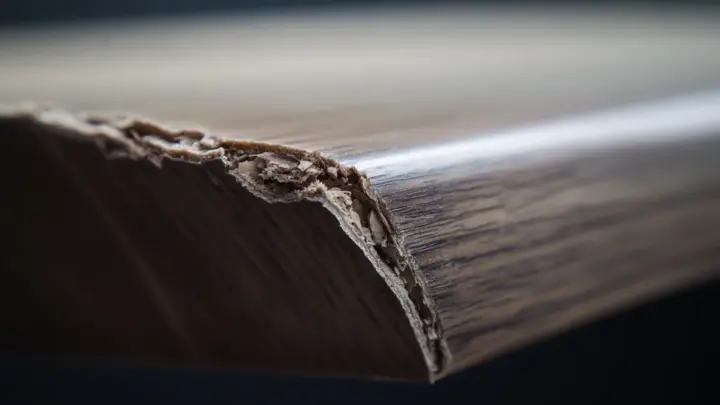
One warning before you cut. Laminate chips easily. Score the surface with a utility knife first, then drill slowly with a fine-tooth hole saw.
Per manufacturer guidance on laminate furniture, cutting too fast is how you end up with a cracked top.
Map the Cable Path Before You Buy Anything
Don't buy hardware until you've walked the path with your eyes. Pull the monitor forward, look behind it, and trace where each cable would go.
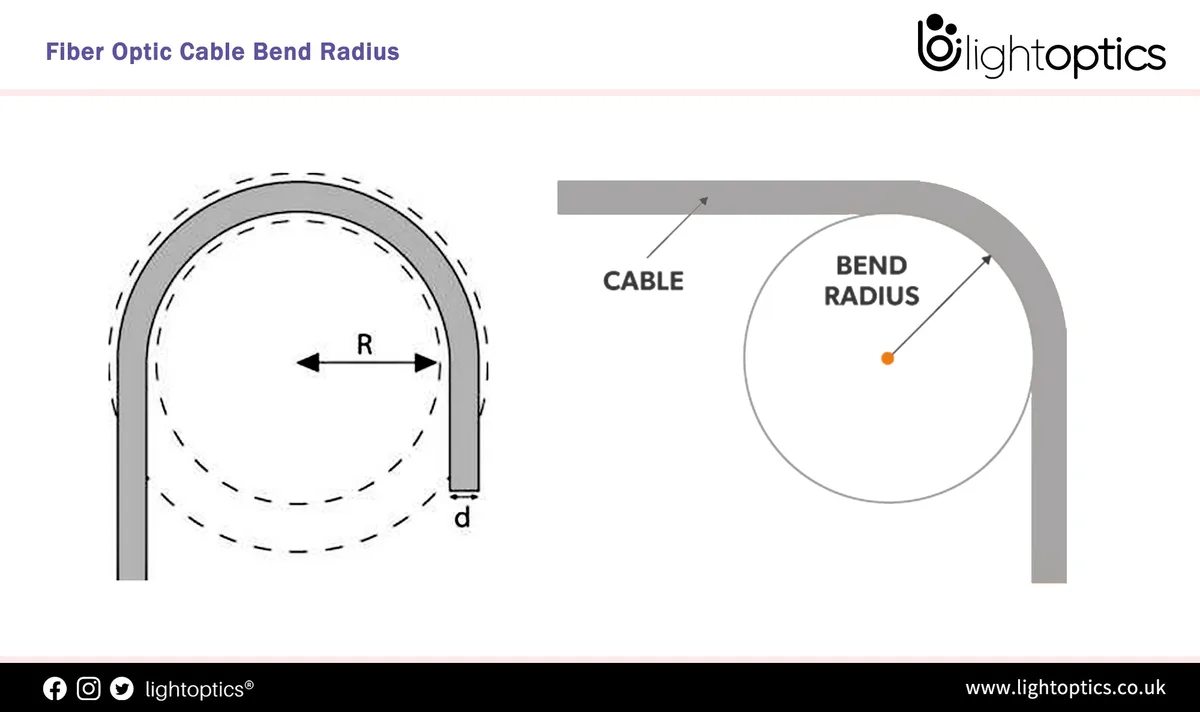
Image source: Bing (Web (fair-use with source credit))
Every cable needs a route from the monitor port, along the carrel surface, to a power source. That's three segments. Miss one and the whole run fails.
Measure these four things first
- Grommet size. Standard sizes are 2 inch (50mm), 2.5 inch (60mm), and 3 inch (80mm).
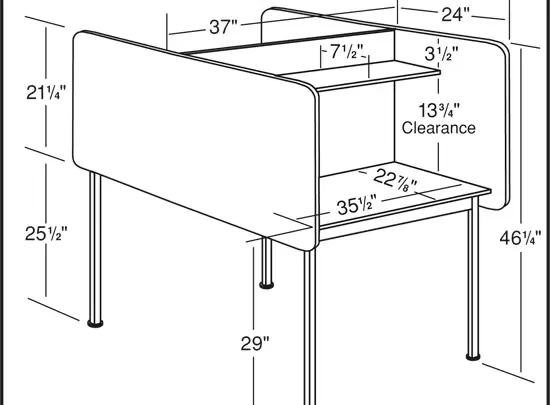
- Carrel top thickness. Most are ¾ inch to 1 ¼ inch. Monitor arm clamps usually max out at 2 to 3.5 inches.
- Cable length needed. Add 12 inches of slack to whatever you measure.
- Distance to the nearest outlet. This is where most setups break down.
Why short cables kill the plan
Factory monitor cables are usually 3 to 6 feet. HDMI runs reliably to about 15 feet passive. DisplayPort passive tops out around 6 feet at full bandwidth.
USB-C power delivery stays stable to roughly 6 feet for 100W.
If your outlet is on the far side of the carrel, you'll need an extension or a longer cable. Test the actual run before you commit to a route. A cable that sags mid-air because it's 6 inches short looks worse than no cable management at all.
Respect the bend radius
Every cable has a minimum bend radius, typically 4x its outer diameter. A ¼-inch cable needs at least a 1-inch radius at every turn. Kink it tighter than that and you'll see signal dropouts, not immediately, but within a few months of constant flexing.
That's why sharp 90-degree turns behind a carrel back panel are a problem. Use a gentle curve, or route around the corner instead.
The Four Routing Methods, Ranked by Carrel Type
There's no single best method. It depends entirely on what you're allowed to modify. Here are the four that actually work on carrels.
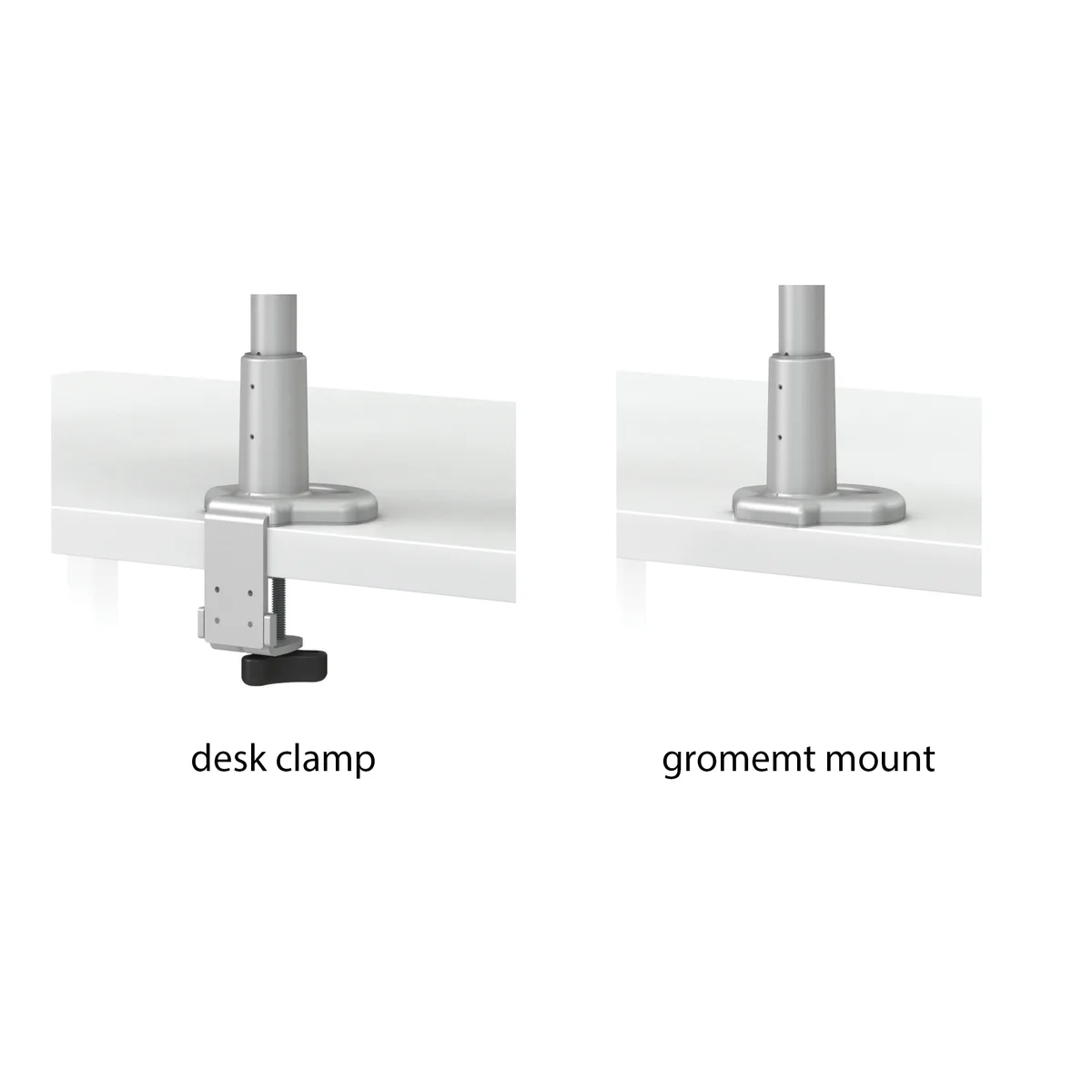
Image source: Web (Bing) / engineersupply.com (Web image (fair-use with source credit))
| Method | Best for | Drilling? | Removable? |
|---|---|---|---|
| Clamp-on grommet | Library and rental carrels | No | Yes |
| Adhesive raceway | No-drill setups in mild climates | No | Mostly |
| Under-desk cable tray | Home carrels, permanent installs | Yes | Hard |
| Drill-in grommet | Carrels you own | Yes | No |
Clamp-on grommet
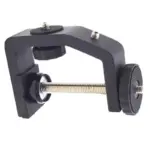
A clamp-on desk grommet presses onto the edge of the work surface and gives you a passthrough without a single hole. It's the go-to for library carrels and hot-desking setups where you need to pack up and leave. The trade-off is slippage.
If your carrel top is thinner than ¾ inch, the clamp may not bite hard enough.
Adhesive raceway
Adhesive raceway is the easiest no-drill option. It glues a channel along the back or underside of the carrel and hides the cables inside. Two caveats.
First, adhesive fails on textured or dusty surfaces. Second, hot climates degrade the bond faster. Wipe the surface with isopropyl alcohol before sticking anything down.
Under-desk cable tray
An under-desk cable tray screws into the underside and holds the loose run of cables. It's the cleanest solution for a carrel you own. For rentals, some trays offer clamp mounting, but they're less secure.
Per aggregate reviews, clamp-mounted trays sag over time if you overload them.
Drill-in grommet
A drill-in grommet is permanent and clean. It's the best option when you own the carrel and plan to keep the setup for years. Pair it with an under-desk tray so the cables stay supported after they drop through.
Why velcro beats zip ties
Zip ties are the wrong default. They crush cable jackets if you over-tighten, and they have to be cut to remove, which can nick the cable underneath. Velcro ties are reusable, gentler, and take seconds to adjust.
Space them every 6 to 12 inches along a run. That's enough to keep cables tidy without pinching them.
Step-by-Step: Running the Cables Cleanly
Here's the sequence that works on almost any carrel. Do it in order. Skipping a step usually means redoing the whole run.

Image source: Bing (Web (fair-use with source credit))
Step 1: Confirm permission. If it's not yours, get the ok before anything else.
Step 2: Test the route with cables in hand. Don't mount anything yet. Lay the cables where they'd go and check the length.
Step 3: Mount the routing hardware. Clamp, stick, or screw your grommet, raceway, or tray into place.
Step 4: Run cables with slack loops at both ends. Leave 6 to 12 inches of slack at the monitor end and the power end. Tight cables fail. Slack cables don't.
Step 5: Bundle with velcro ties. Every 6 to 12 inches. Don't cinch down hard.
Step 6: Label both ends of each cable. A strip of masking tape and a marker is enough.
Step 7: Stress-test through the full monitor arm range. Tilt, swivel, raise, and lower the monitor. If a cable pulls tight at any point, add slack.
Step 8: Look at it from the front. If you can see cables from the front of the carrel, adjust the route. The whole point is clean sightlines.
Mounting without cracking the surface
Laminate and melamine chip easily. If you're drilling, score the surface first with a utility knife, then use a fine-tooth hole saw at low speed. For adhesive mounts, clean the surface with isopropyl alcohol and let it dry fully.
Skipping that step is why clips fall off in week two.
Mistakes That Cost People Money, Access, or Both
Drilling a carrel you don't own tops the list. Every year, students lose carrel privileges or get charged repair fees for holes that could have been avoided with a $6 clamp-on grommet. That's an expensive lesson for a two-minute fix.
The five mistakes we see most often
Drilling without permission. Covered above, but worth repeating because it's the one with real consequences.
Crushing cables behind the modesty panel. Power bricks and monitor cables jammed against a panel overheat. Per UL guidance on power strips and cable management, free airflow around power adapters matters. If the brick feels hot to the touch after an hour, you've got a problem.
Pinched runs at the monitor arm joint. Every time you tilt or swivel, the joint flexes the cable. A tight pinch point there will fail within months. Leave slack at that specific spot.
Daisy-chained power strips. Plugging one strip into another overloads the circuit. Standard US strips are rated 15A, UK strips 13A. Don't chain them to reach a distant outlet.
Use a longer cord or a single heavy-duty strip instead.
Adhesive clips on textured or hot surfaces. Foam tape doesn't bond to fabric panels or dusty laminate. And in hot rooms, even good adhesive gives up. Clean first, and re-press after 24 hours.
What a failed run looks like
You'll know a routing job went wrong when the monitor flickers after you move the arm, or when the cable pulls taut the moment you raise the screen. Both point to the same root cause. Not enough slack, and a bend radius tighter than 4x the cable's diameter.
Fix it before the cable fails. Once the jacket kinks, the damage is permanent and the cable needs replacing.
Power, Heat, and Fire Safety Around a Carrel
Fire codes apply to public buildings, and that includes library and office carrels. Per NFPA 70 (the National Electrical Code), cable run in plenum spaces needs plenum-rated jacketing. A carrel isn't usually a plenum, but shared raceways between units often sit inside walls or above ceilings where the rating matters.
What this means for your setup
- Don't run cables through shared wall raceways unless they're rated for it.
- Keep power strips on the floor or on a tray, not dangling from the work surface.
- Leave at least an inch of clearance around power bricks.
- Never cover a power strip with fabric or a cable sleeve.
Heat is the quiet killer
Modesty panels trap heat. So does a fully bundled cable run. If you've packed six cables into one sleeve and pushed it against the back panel, you've created an insulated tube.
Power cables inside it run warmer than they should.
Split your run if you can. Data cables in one bundle, power in another, with a few inches of separation. That single change drops temperatures noticeably and costs nothing.
ADA clearance and tripping hazards
If the carrel is in a public or accessible space, cables can't cross a wheelchair path or create a trip line. Per ADA Standards for Accessible Design, clear floor space matters. Route cables along the back edge or under the surface.
Never let them loop across the front of the carrel or dangle into the footwell.
Strain relief at both ends
The port on the back of your monitor is the weakest point in the whole run. If the cable hangs straight down from it, gravity does the damage. Add a velcro tie just past the connector to take the weight off the port.
Same trick at the power brick end. This one detail is why institutional installs last years longer than home setups.
Maintenance, Real Scenarios, and Quick Answers
A cable run isn't set-and-forget. It shifts a little every time you move the monitor. Here's what to check, and two real setups that show how the advice plays out.
The three-month check
- Dust. Bundled cables collect it. Wipe them down, or you'll smell hot dust before you see the problem.
- Velcro tension. Ties loosen over time. Re-press them every few months.
- Port strain. Feel the cable right where it enters the monitor. If it's pulling, add slack.
- Adhesive. Press down any raceway that's started to lift. Once it peels halfway, you're re-doing the whole run.
That's a five-minute job every three months. Skip it and you'll be replacing a cable within a year.
Real setup one: grad student, dual-monitor library carrel
A grad student with two 27-inch monitors in an assigned library carrel has no drill permission. The setup uses a clamp-on grommet at the back-left corner, adhesive raceway along the underside of the work surface, and velcro ties every 8 inches. Total material cost is under $40.
Total install time is about 45 minutes, including the length test.
The one thing that made it work: a 10-foot DisplayPort cable. The 6-foot factory cable couldn't reach the outlet across the carrel. Without that longer run, none of the routing mattered.
Real setup two: hot-desking office carrel
An open-plan office with shared carrels needs cable routing that survives daily teardown. Here, adhesive raceway is a bad choice because it stays behind. The better solution is a clip-on cable spine and a single USB-C cable to a shared dock.
Pack-up takes 30 seconds. Nothing is left attached.
Does the routing method matter more than the cables?
No. The cables matter more. A perfect routing job with a short, kinked cable still fails.
Get the right cable length and bend radius first. Then worry about making it look clean.
When to re-route from scratch
If you've added a second monitor, swapped to a monitor arm, or moved the carrel to a new outlet, re-run the whole path. Bolting a new cable onto an old route is how you end up with a tangle that defeats the original job.

Similar Posts