Stop Students Peeking Around Desktop Test Carrels
Founder & Workspace Ergonomics Specialist at Desktop Carrel · Certified Professional Ergonomist (CPE), WELL Accredited Professional (WELL AP) · 13+ years testing acoustic privacy panels, modular carrels, and productivity workspace ergonomics
You've set up the room. The chairs are straight, the workstations are numbered, and every screen faces the same direction. Then exam day arrives, and you catch it anyway: a student tilting their monitor half an inch left, eyes drifting sideways past the divider, reading their neighbor's answers like a free sample.
There's no single fix, because how to stop students from peeking around desktop testing carrels depends on your room layout, your budget, and whether you're proctoring in person or remotely. What you need is a workflow. Per NCTA professional standards for testing centers and JCQ exam room guidance, the biggest failure point isn't a missing barrier, it's a barrier that was never tested from the cheating angle.
how to stop students from peeking around desktop testing carrels
Stop peeking with three stacked layers: physical sightline blocks, screen-level privacy filters, and active proctoring. Raise dividers to at least 24 inches above the desk surface. Tilt monitors back slightly and set a 30 to 45 degree privacy filter.
Then stagger seats and position proctors so no station sits hidden.
Why Students Peek Around Desktop Testing Carrels
Peeking isn't a character flaw. It's geometry. If a student can see another screen from their normal sitting position, some percentage of them will eventually look.
Your job is to remove the geometry, not lecture the temptation away.
Think about how a real sightline works. A 22-inch monitor at eye level sits roughly 20 to 24 inches from the test-taker. A neighbor 36 inches away, angled 30 degrees off-axis, can still catch readable text if the monitor isn't recessed or tilted.
That's the gap most rooms miss.
The classic cheat is "shoulder surfing," borrowed from arcade gaming lingo but very real in testing halls. It rarely looks dramatic. It's a slow lean, a glance during a stretch, or a choreographed cough that buys two seconds of screen time.
Then there's the optical bypass. Reflections in glasses, glossy divider panels, even a polished desktop surface can mirror a screen a divider was supposed to block. A proctor staring at the front of the room sees nothing.
The cheat happens in the reflection, in peripheral vision, at the edges.
Distance alone doesn't solve it either. Wide seating helps, but a 48-inch gap still fails if every monitor is tilted the same way and screens are bright. Layout, monitor angle, screen brightness, and divider opacity all compound.
Fix one and ignore the others, and the hole stays open.
This is why a workflow beats a checklist. You're not buying a product, you're auditing a system.
Pick the Right Anti-Peeking Setup for Your Testing Room
There's no universal answer here. The right setup depends on four variables: room size, budget, proctoring model, and whether you control the devices.
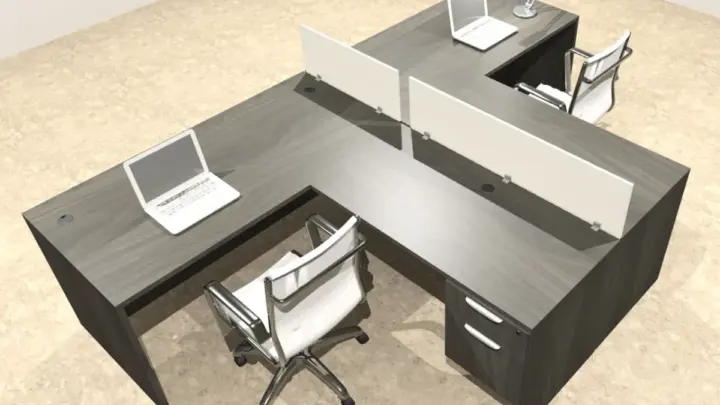
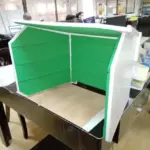
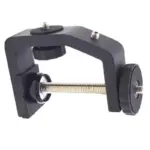
If you run an in-person lab with fixed desktops and a tight budget, then low-profile carrel dividers plus monitor tilt is your cheapest win. A clamp-on divider at 24 inches above the desk runs roughly $25 to $80 per station as of 2026. That's the lowest cost per blocked sightline in most rooms.
If you proctor remotely or hybrid, then physical barriers do less work and software does more. Lockdown browsers (Respondus LockDown Browser, Proctorio, Honorlock, ExamSoft) plus dual-camera or 90-degree webcam coverage catch the side glances a fixed camera misses.
If you have high-stakes exams (NCLEX, bar, certification), then layer everything. Physical barriers, privacy filters, dual-camera proctoring, and a documented sightline audit. Per Pearson VUE and Prometric test-center standards, layered controls are expected, not optional.
If accessibility accommodations are in play, then check your barrier plan against ADA and Section 504 requirements before you install anything. Tall dividers can block a wheelchair user's view of their own screen. A service animal needs floor clearance a wrapped panel might eliminate.
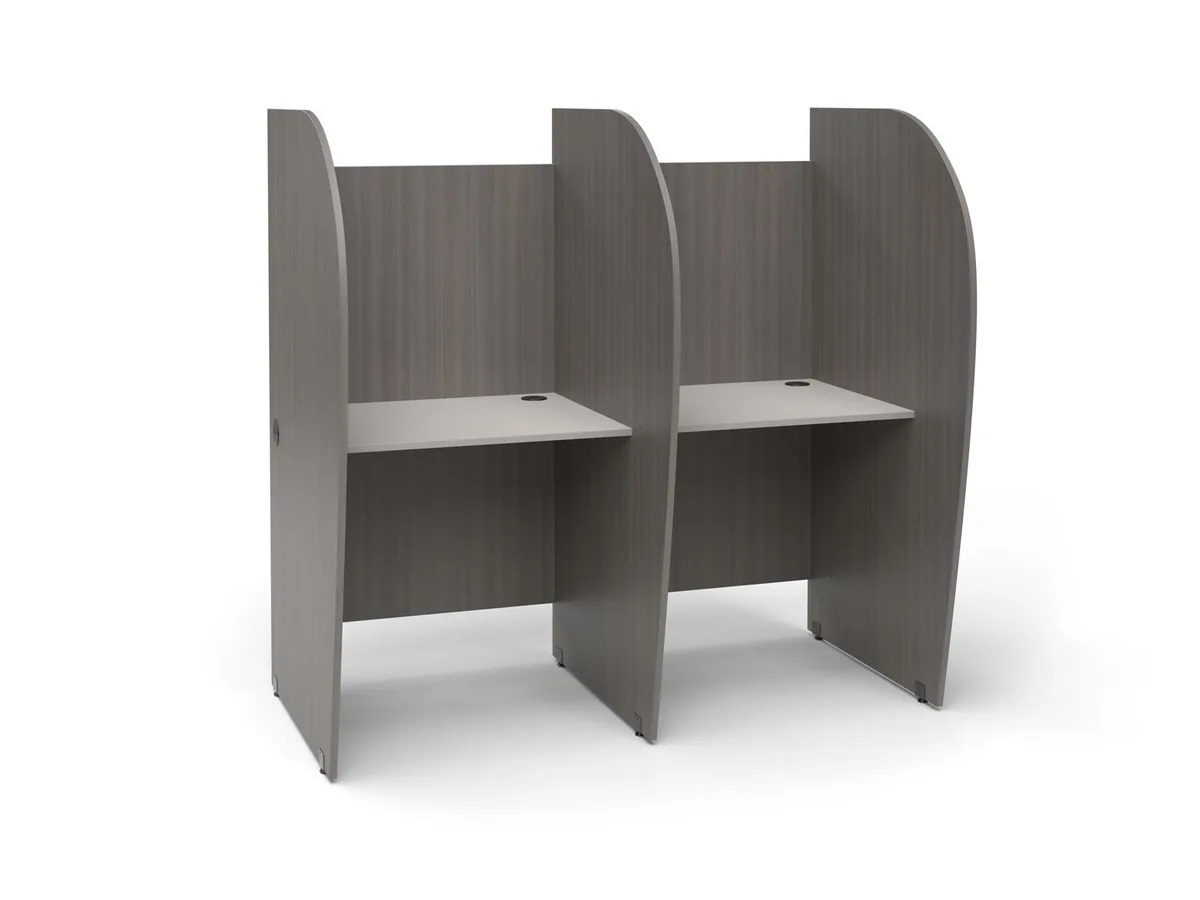
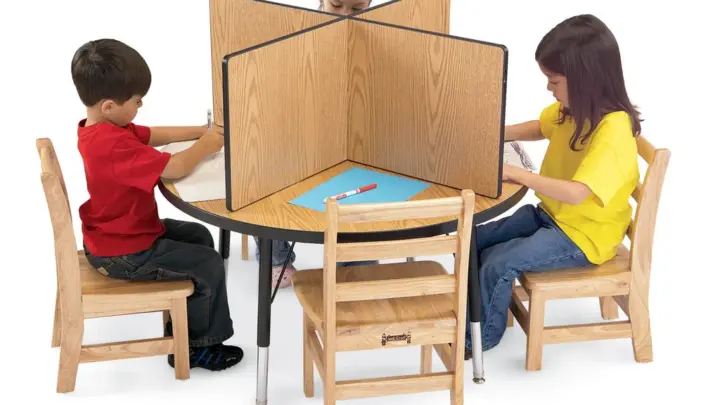
Image source: Web (Bing) / computercomforts.com (Web image (fair-use with source credit))
A quick decision table
| Your situation | First move | Add next |
|---|---|---|
| Small lab, tight budget | 24-inch clamp-on dividers | Monitor tilt + staggered seats |
| Remote proctoring | Dual-camera webcams | Lockdown browser + AI flags |
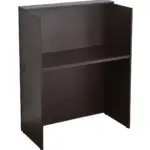
| High-stakes certification | Full-height dividers (48") | Privacy filters + live proctor |
| Accessibility-heavy room | Adjustable divider height | Documented accommodation plan |
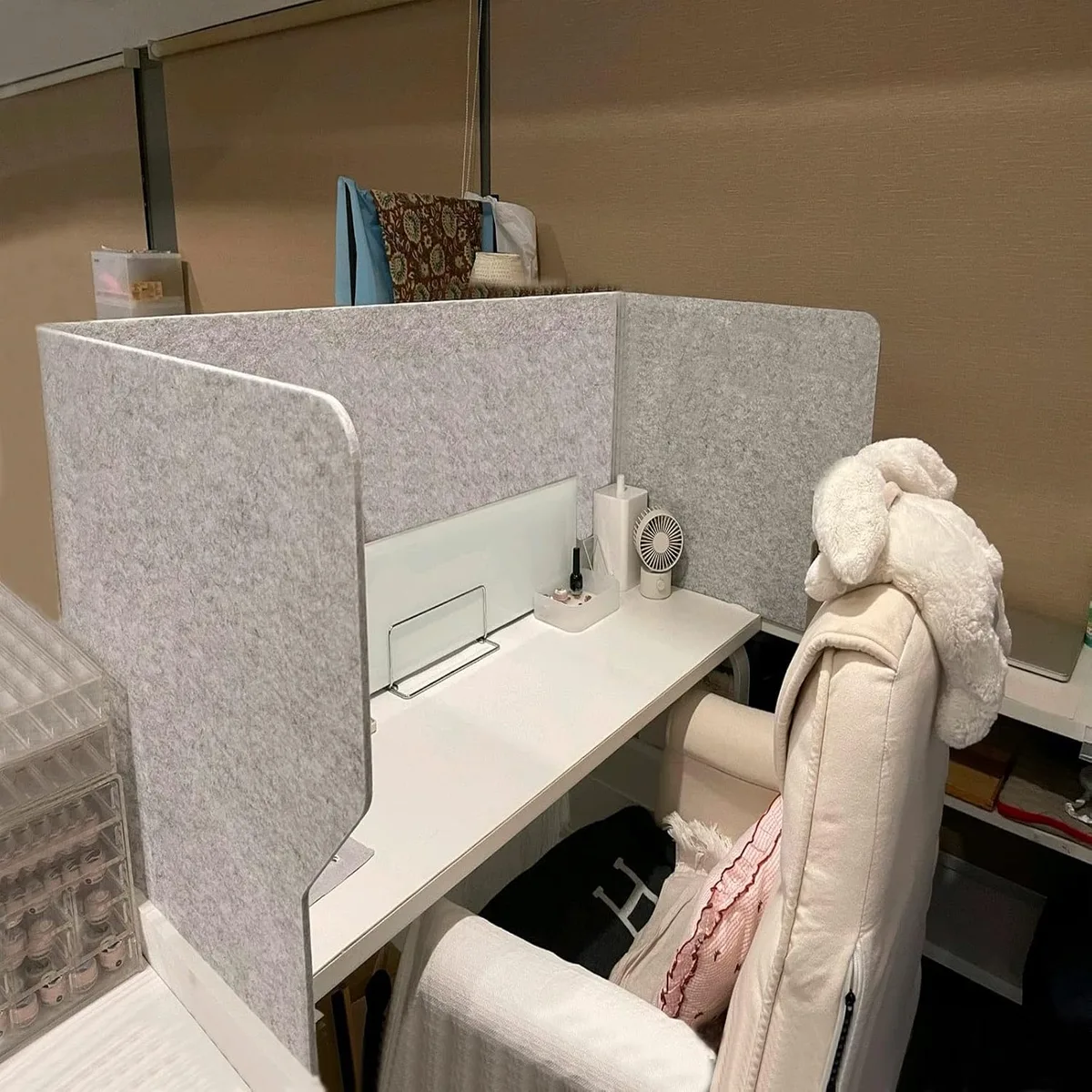
Image source: Web (Bing) / amazon.ca (Web image (fair-use with source credit))
The Step-by-Step Workflow to Block Peeking Sightlines
Here's the sequence that actually works. Do it in this order, because each step changes what the next one needs.
Step 1: Sit at every station and look around. Sit in each chair. Check every angle a student could turn their head. Mark any screen visible from that seat.
This is your sightline map.
Step 2: Set monitor tilt and setback. Tilt monitors back slightly and recess them at least 4 to 6 inches from the front desk edge. This narrows the off-axis viewing angle without any hardware.
Step 3: Install or raise dividers. Aim for at least 24 inches above the desk surface for standard exams, 48 inches for full vision blocks. Verify opacity. Frosted or translucent panels still leak text at close range.
Step 4: Add privacy filters where dividers fall short. A 30 to 45 degree filter cuts off-axis viewing on screens the divider can't cover. Pair it with the physical barrier, not instead of it.
Step 5: Stagger seats and randomize charts. Offset rows so no student sits directly behind another's monitor line. Randomize seating per session to break up pre-arranged peeking pairs.
Step 6: Position proctors and set walking routes. Place fixed proctors where they can see the back of every monitor, then walk perimeter routes on a timed cadence.
Step 7: Run the session protocol. Device check, ID check, environment scan, then mid-session monitoring and flag documentation. Orient students on the rules before the clock starts.
Step 8: Review and document. Log every flag, review footage, and update your sightline map before the next session.
Physical Dividers, Privacy Filters, and Proctoring Software Compared
Each tool blocks a different kind of peeking. Pick based on what your room actually leaks.
Physical dividers block direct sightlines. They're cheap, they don't need power or software, and they work offline. But they don't stop reflections, and they can conflict with fire codes and accessibility rules.
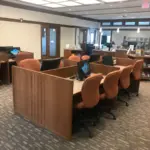
Low-profile clamp-on panels run $25 to $80 per unit. Full-height modular carrels push $150 to $600 per station.
Monitor privacy filters block off-axis screen viewing at the source. A 30, 45, or 60 degree filter costs $40 to $120 per monitor and travels with the screen. The trade-off: some test-takers report dimmer, less comfortable screens, especially in already dim testing rooms.
Proctoring software catches behavior, not geometry. Lockdown browsers and AI attention-tracking flag side glances, but false-flag rates are variable and often cited between 5 and 20 percent. That means real human review is still required, and so is a data-retention policy that satisfies FERPA, GDPR, and state biometric laws (Illinois BIPA, Texas CUBI, Washington).
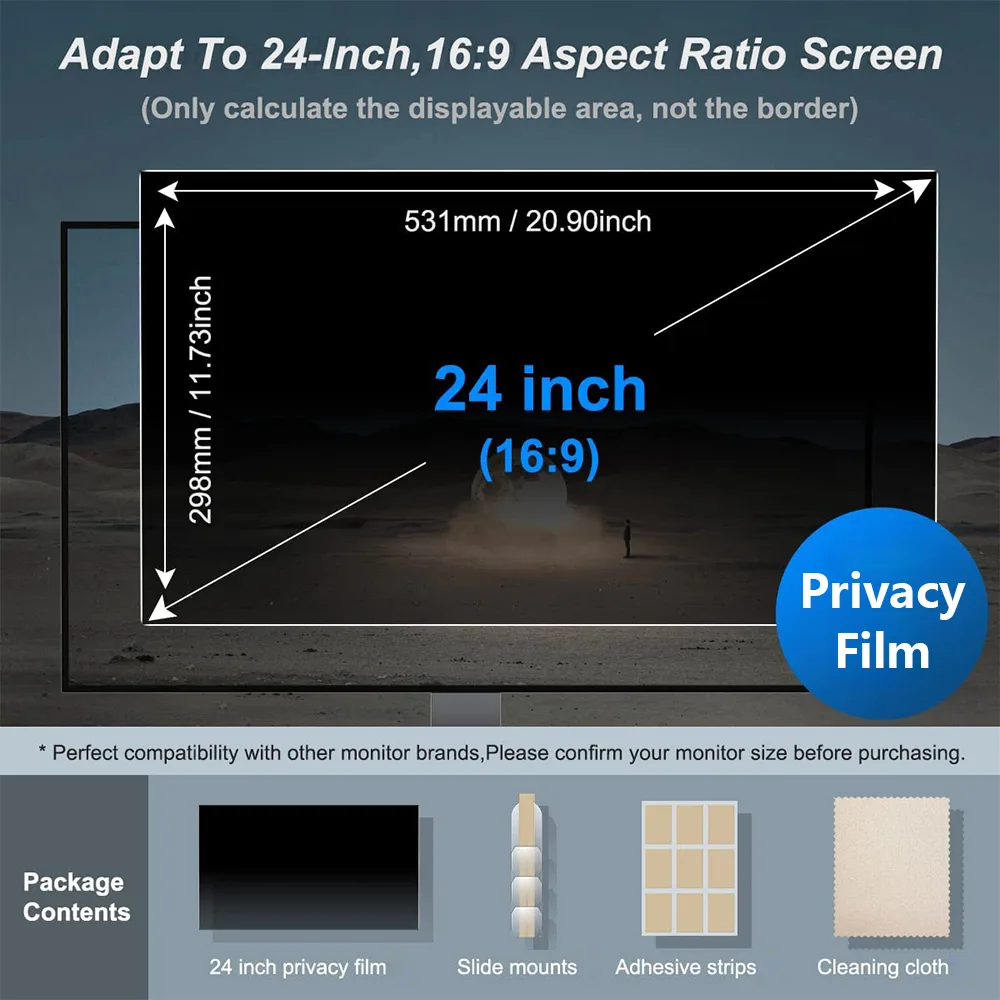
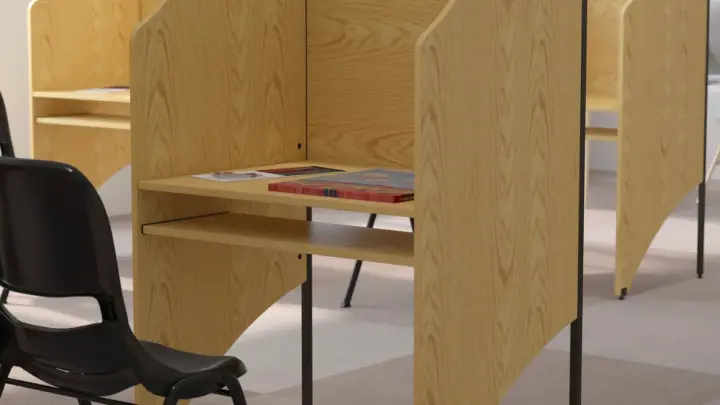
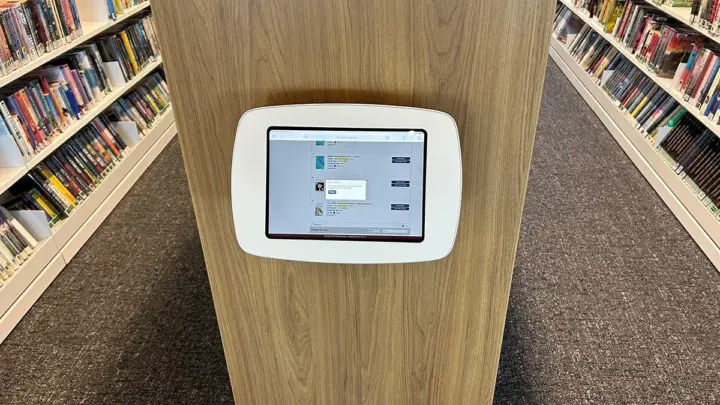
Image source: Bing (Web (fair-use with source credit))
Side-by-side comparison
| Option | Best for | Cost per station | Main limitation |
|---|---|---|---|
| Physical dividers | In-person labs, tight budgets | $25 to $600 | No reflection control |
| Privacy filters | Screen-level blocking | $40 to $120 | Dimmer screen |
| Proctoring software | Remote and hybrid exams | $5 to $15 per exam | False flags need review |
If you want the honest answer: the strongest rooms use all three. Physical barriers remove the easy cheat. Filters close the screen-level gap.
Software catches what slips past both.
Setup Mistakes That Leave Peeking Gaps Open
Most peeking gaps come from setup errors, not bad equipment. Here are the ones we see repeatedly in room audits.
- Dividers too short. An 18-inch panel feels tall until a student leans back. Twenty-four inches is the working minimum, and 48 inches is the safe ceiling for full blocks.
- Ignoring the back gaps. Side walls don't matter if students can see over the rear panel. Check behind every station.
- Screens tilted toward the neighbor. This is the single biggest missed fix. A monitor facing forward on a shared row invites shoulder surfing.
- Reflections left unmanaged. Glossy panels, eyewear, and windows mirror screens a divider never blocked.
- Proctor positioned only at the front. If one proctor stands where they can't see monitor backs, half the room is unmonitored. Split posts and add a walking route.
- Overcrowding. A 30-inch seat pitch with tall dividers still fails under pressure. Thirty-six to 48 inches between station centers is the practical target.
- Skipping the sightline audit. If you never sat in each chair to test angles, you're guessing.
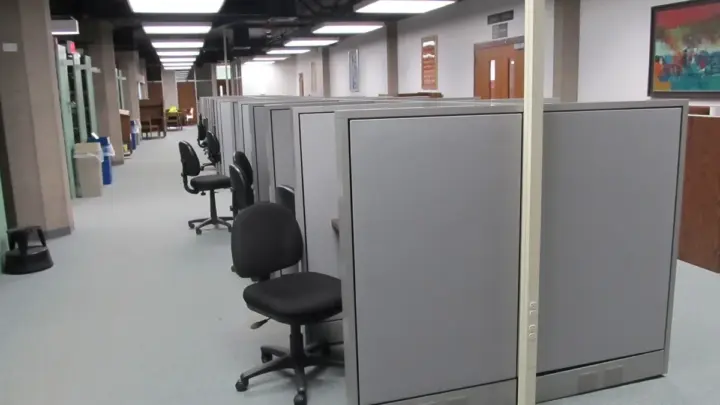
Image source: Web (Bing) / teacherspayteachers.com (Web image (fair-use with source credit))
Want a checkable standard? The National Institute of Standards and Technology publishes security and privacy frameworks that testing programs often adapt for exam-integrity controls, and FERPA guidance from the U.S. Department of Education governs how you store proctoring footage and student data.
Compliance Rules: Privacy, ADA, and Fire Safety for Carrel Dividers
You can't block sightlines by breaking other rules. Three sets of constraints govern what you're allowed to install, and they overlap more than most testing coordinators expect.
Start with privacy. Proctoring footage, webcam clips, and AI flags are education records in most US contexts. That brings them under FERPA.
If you're recording in the EU or UK, GDPR applies and consent has to be documented. If you're running biometric attention-tracking or keystroke analysis in Illinois, Texas, or Washington, state biometric laws (BIPA, CUBI, and Washington's law) impose notice and retention requirements that can outpace your institution's default policy.
Then there's accessibility. ADA and Section 504 mean a tall divider can't be treated as universal. A wheelchair user or a student with a mobility aid needs sightline adjustability, not a fixed 48-inch wall.
Service animals need floor clearance around the station. Document accommodations before installation so the barrier plan and accommodation plan don't fight each other.
Fire safety closes the loop. Divider panels and modular carrel systems are furniture in educational occupancies, which puts them under NFPA 101 and local fire codes. Tall overhead partitions can trigger sprinkler clearance or egress concerns in smaller rooms.
Fabric-wrapped panels need to meet flame-spread ratings (Class A or B) that your facilities team can verify.
If any of those three stalls the plan, then don't abandon the anti-peeking goal. Shift weight to the layers that don't have compliance overhead: monitor tilt, privacy filters, staggered seating, and proctoring position. The physical barrier is often the easiest layer to scale back without losing most of the protection.
Frequently Asked Questions
What divider height actually stops peeking?
Twenty-four inches above the desk surface is the practical minimum for standard exams. Forty-eight inches gives a full vision block for high-stakes testing. Anything lower than 24 inches looks like a barrier but fails the moment a student leans back or shifts posture.
Do monitor privacy filters replace dividers?
No, and pairing them is the point. Filters cut off-axis screen viewing at 30 to 45 degrees, but they don't block direct sightlines across an open row. Dividers block sightlines.
Filters close the screen-level gap. Use both when budget allows.
How many proctors do I need for a full room?
Ratios vary by stakes. A working guide: 1 proctor per 20 students for low-stakes exams, 1 per 30 for standard sessions, and 1 per 15 for high-stakes certification tests. Fixed posts plus a walking route beat a single stationary proctor every time.
Can I stop peeking without any hardware?
Partly. Monitor tilt, screen recess, staggered seating, randomized charts, and stronger proctor positioning all reduce peeking with zero equipment cost. Move to dividers or filters once those cheap fixes are exhausted and sightlines still exist.
Are tall dividers a problem for disabled students?
They can be. Fixed 48-inch panels may block a wheelchair user's own screen view or eliminate service-animal floor clearance. Adjustable-height or modular panels solve this.
Document the accommodation before you install a permanent barrier system.
How often should I re-run the sightline audit?
Before every high-stakes session and at least once per term for routine testing. Any furniture move, monitor swap, or seat-chart change invalidates the previous map. Re-auditing takes about 15 minutes per room and catches gaps nothing else will.

Similar Posts