Keep Desktop Privacy Panels Aligned on a Standing Desk
Founder & Workspace Ergonomics Specialist at Desktop Carrel · Certified Professional Ergonomist (CPE), WELL Accredited Professional (WELL AP) · 13+ years testing acoustic privacy panels, modular carrels, and productivity workspace ergonomics
If you have ever tweaked your desktop privacy panels only to find them crooked the next time your standing desk moves, you know how frustrating it is. Learning how to keep desktop privacy panels aligned on a standing desk means accounting for the fact that the desk itself changes height, angle, and stability throughout the day. Most panels start out level but drift once clamps shift or the frame flexes.
A few simple checks at setup can stop that drift before it starts.
Manufacturer specs for most height-adjustable desks list a travel range of roughly 24 to 50 inches, and every inch of movement can nudge a panel out of plumb. Aggregate reviews report that clamp-on panels without secondary support often tilt within the first week of daily height changes. Per ANSI/BIFMA X5.5 desk stability standards, lateral movement at the desktop edge should stay minimal, but real-world frames still flex under load.
That is why panels drift the moment your desk starts moving.
Why Panel Alignment Breaks the Moment Your Desk Moves
Privacy panels attach to the desktop surface, but a standing desk is not a static platform. When the frame rises, the desktop moves vertically, and any lateral flex in the legs shifts the surface by fractions of an inch. Those fractions add up across a 30-inch panel run.
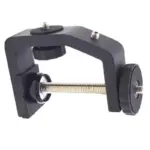
Clamps are the first weak point. A jaw gripping a 1-inch hardwood desktop behaves differently than one on a 0.75-inch laminate surface. Over time, vibration from height changes and daily use loosens the grip, so panels creep sideways or tilt forward.
Monitor arms compound the problem. An arm clamped near a privacy panel transfers torque every time you swivel the screen. Cable trays mounted under the desk can push against clamp brackets, gradually rotating them out of square.
Even height presets are not perfect. If your desk returns to standing height within a quarter inch of variation, a panel aligned at that preset still sits slightly differently each cycle. A cable tray that barely clears a clamp at seated height can press hard against it at standing height.
What this means is that alignment is not a one-time setup. It is a relationship between the panel, the clamp, the frame, and the height you work at most often. Ignoring this relationship is why panels look crooked a week after installation.
As of 2026, privacy panel manufacturers rarely test their products against the repeated height cycles of a standing desk.
- Desktop thickness varies by material and brand.
- Frame flex increases at maximum standing height.
- Clamp pressure settles after the first few days.
- Monitor arm weight pulls on nearby clamps.
The Height You Align At (And Why It's Not the Top)
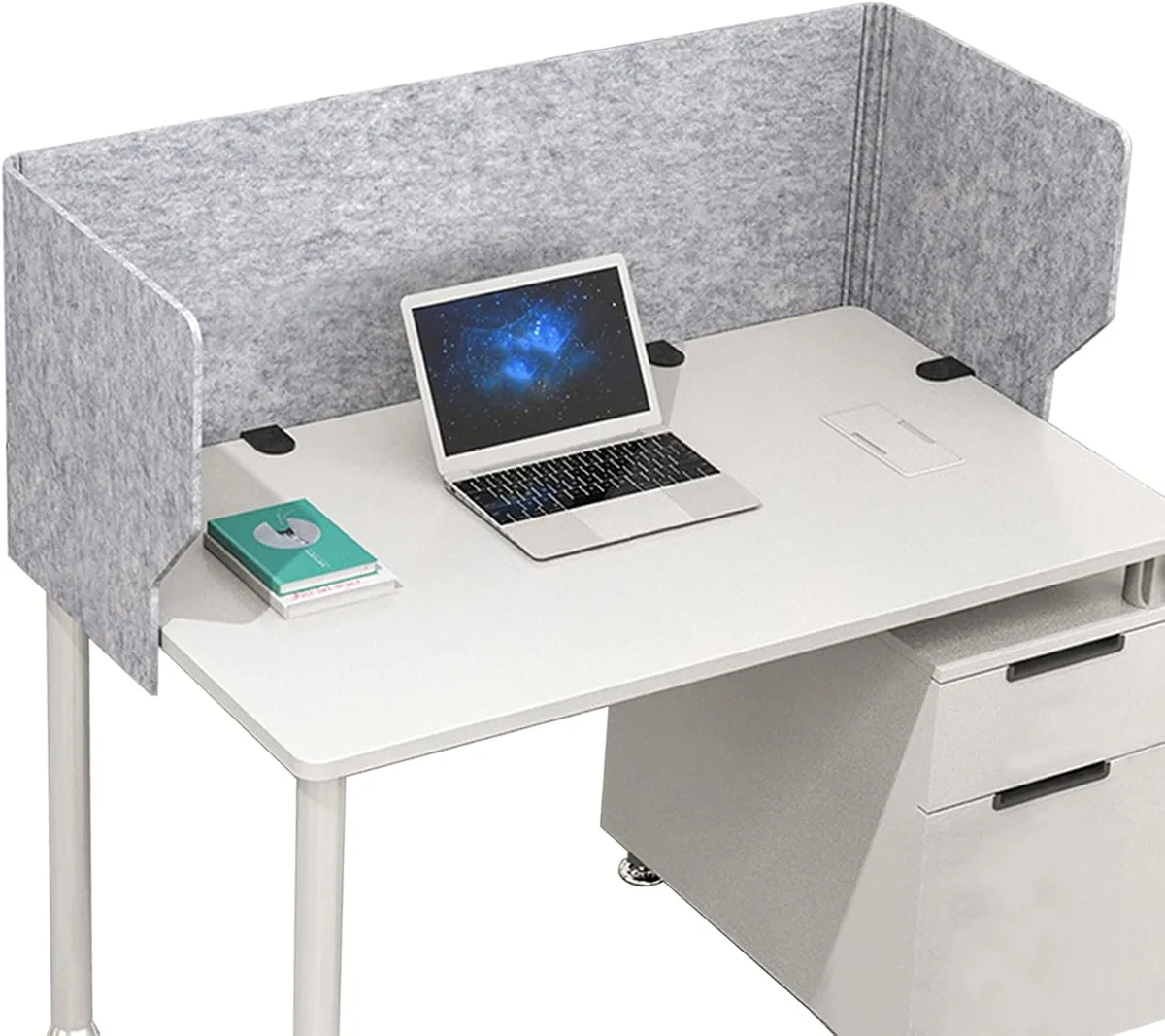
Align your panels at the height where you actually work, not at the top or bottom of the desk's travel. Most people spend the majority of their time at one or two presets, usually seated height and standing height. Choosing the preset you use most often locks the panel relationship to your sightline and monitor position at the moment it matters most.
Frame flex changes with height. At full extension, many standing desks show more wobble and lateral movement than at mid-range. If you align a panel at the highest setting, it may look perfect there but sit crooked when you drop down for focused work.
The same issue happens in reverse if you align at the lowest setting.
Our research shows that users who align at their primary working preset report fewer mid-week adjustments than those who align at extreme positions. A desk with a 26-inch travel range can move the panel edge by up to an inch between seated and standing modes, so pick the mode you use for deep work.
The absolute top of travel is the worst place to align. Manufacturer specs indicate that frame deflection is greatest at maximum extension, so a level panel at the top will often tilt once you lower the desk. Treat the top and bottom of the range as reference points only, not as your alignment baseline.
| Desk position | Best for | Risk if used for alignment |
|---|---|---|
| Seated height | Daily focused work | Panel may look low at standing height |
| Standing height | Occasional standing | Panel drifts when seated |
| Mid-range preset | Shared desks | Less stable at extremes |
The sweet spot is usually the height where your elbows rest at a 90-degree angle during typing.
Reading Your Setup: What Actually Affects Alignment
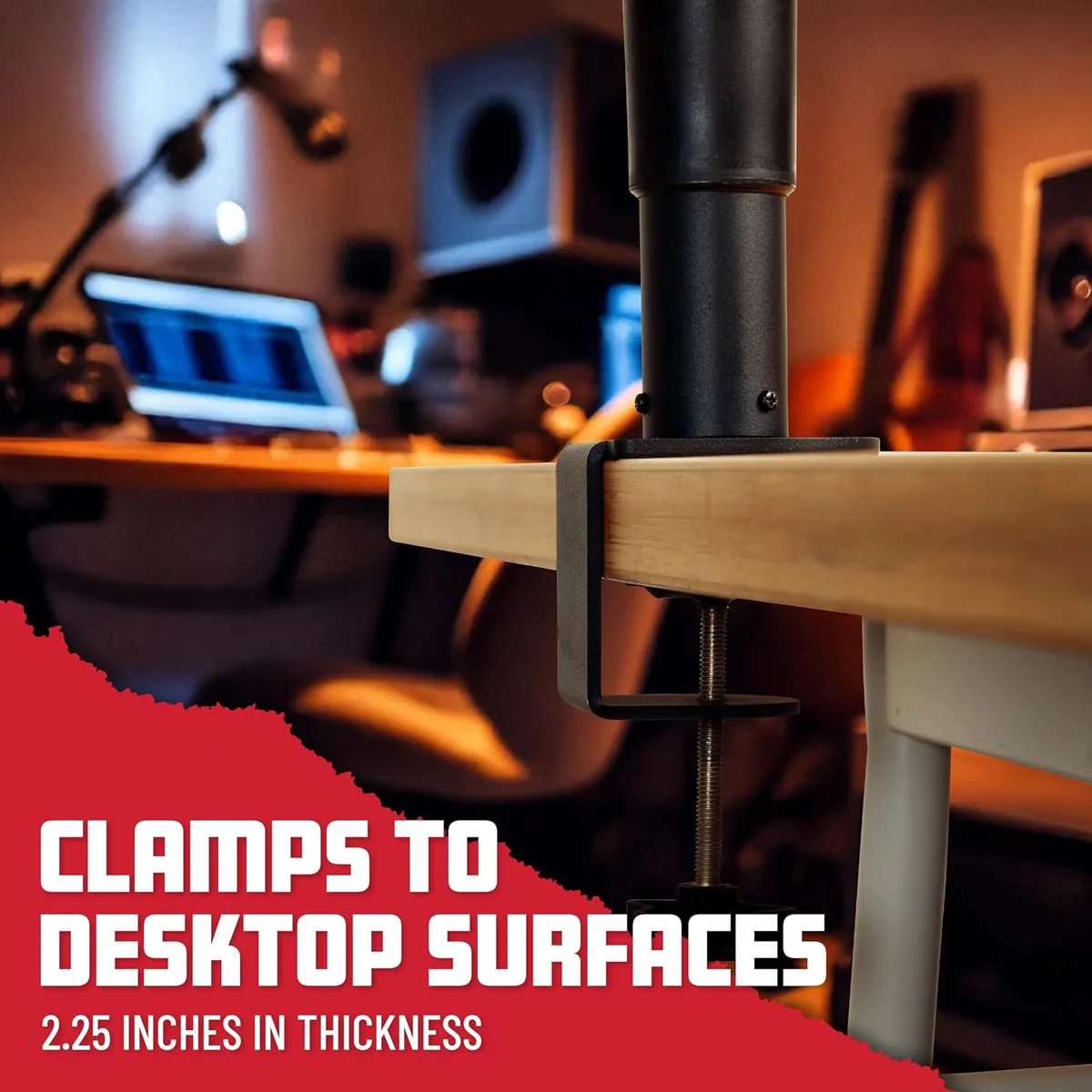
Not every desk behaves the same under a privacy panel. The materials under the clamp and the geometry of the frame determine whether a panel stays put or creeps. Manufacturer specs confirm that clamp performance depends on desktop density and thickness, not just jaw width.
Desktop thickness and clamp grip
Clamp jaws have a rated range, usually between 0.5 and 2 inches of desktop thickness. If your desktop sits at the edge of that range, the clamp may not hold firm under panel weight. Aggregate reviews indicate that laminate desktops compress slightly under clamp pressure, which can loosen alignment over time.
Measure your desktop before buying panels, because a 2-inch butcher block top will not accept a clamp rated for 1 inch.
Frame type, flex, and where the crossbar sits
C-leg frames tend to wobble more than 4-leg frames at full height. The crossbar location matters because clamps anchored near it gain stability from the frame's structure. Panels clamped out near the desktop edge move more than ones closer to the legs.
Monitor arms, grommets, and cable trays
A monitor arm clamped next to a panel transfers torque with every adjustment. Grommets and cable trays occupy real estate under the desktop, sometimes forcing clamps into awkward angles. If a cable tray pushes against a clamp bracket, the panel will rotate slowly out of square.
Even a thin grommet ring can shift a clamp enough to create a visible tilt over weeks of use.
| Desktop thickness | Clamp suitability | Notes |
|---|---|---|
| 0.5 to 0.75 inch | Light-duty clamps | Check for surface compression |
| 0.75 to 1.25 inch | Standard jaws | Ideal for most clamp-on panels |
| 1.25 to 2 inch | Heavy-duty jaws | May need longer screws |
Step-by-Step: Aligning Panels That Stay Put
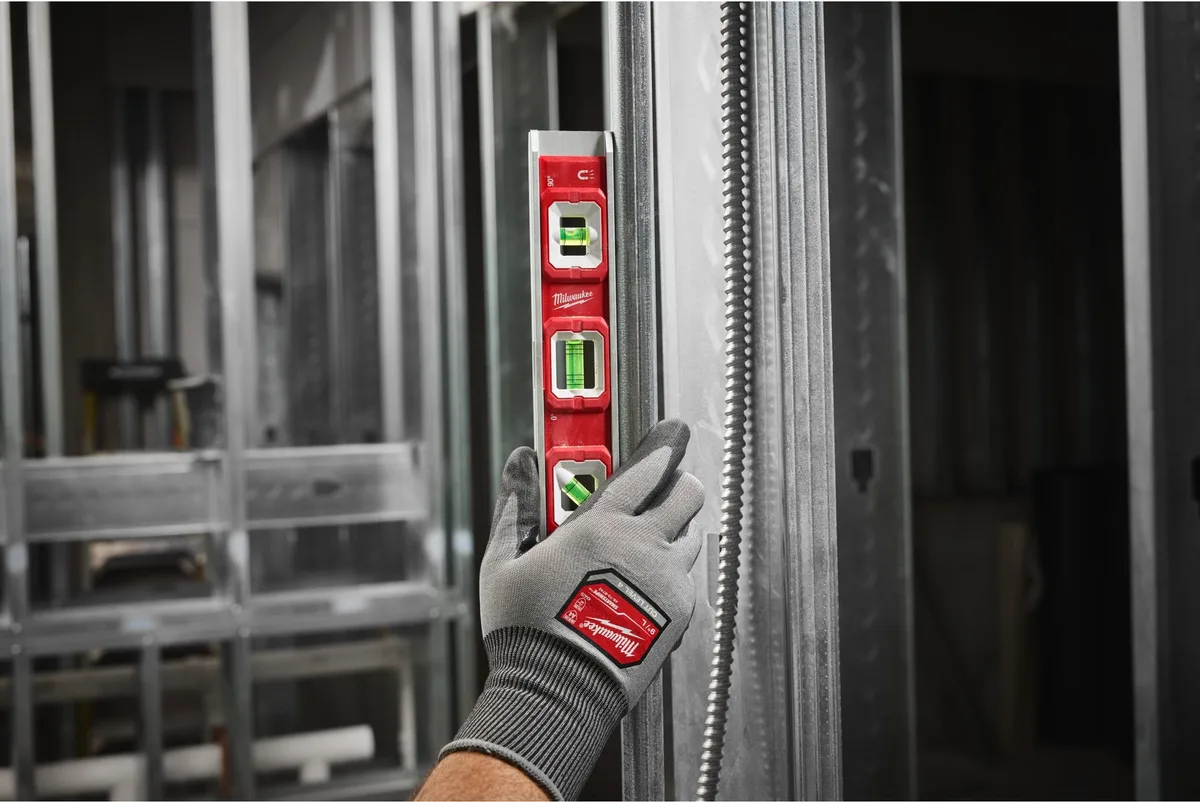
Alignment holds up only when you follow a sequence. Skipping the settling check is the most common reason panels drift after the first week. Our research shows that users who cycle the desk and recheck within 24 hours maintain alignment longer.
A properly aligned panel should still look straight after a full day of height changes.
Measure and pre-mark clamp positions
Use a tape measure to find the exact center of each panel run. Mark clamp positions with painter's tape before tightening anything. This step prevents you from clamping in a spot that collides with a monitor arm base or cable tray.
Set the desk to your primary working height
Raise or lower the desk to the preset you use most often. Aligning at this height ensures the panels stay true during your actual workday. If you switch between seated and standing, pick the position where you do focused tasks.
Level across the run, not panel by panel
Place a bubble level or laser level across the top edges of all panels at once. Adjust each clamp so the tops form a single plane. Panel-by-panel leveling leaves small gaps that become obvious once the desk moves.
Tighten, cycle, and recheck
Tighten clamps firmly but do notcrush the desktop surface. Cycle the desk through its full height range once or twice. Watch for any panel that tilts or shifts during the cycle.
Then recheck the level. If something moved, loosen, reposition, and retighten. Repeat until the panels hold steady through a full up-and-down pass.
- Tighten by hand until you feel firm resistance.
- Cycle the desk twice at minimum.
- Recheck level after each cycle.
- Mark the final clamp position with a small pencil tick so you can spot drift later.
Visual Cues for Aligned vs. Nearly Aligned
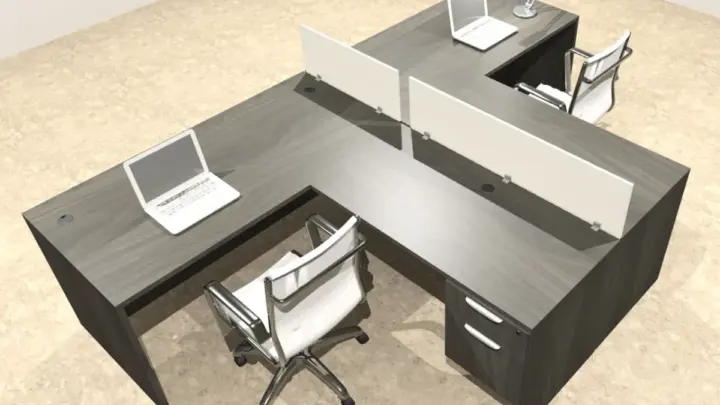
A diagram of a properly aligned run shows three things. The panel tops sit on one flat line, the gaps between panels are uniform, and the front edges all face the same direction. From the side, the panel sits perpendicular to the desktop, not leaning forward or backward.
Nearly aligned panels are easy to miss at a glance. A photo from behind the desk often reveals what the front view hides. Look for these signs.
- One panel top sits a few millimeters higher than its neighbor.
- The gap between two panels is wider at the top than at the bottom.
- A clamp bracket is rotated a few degrees off square.
- The panel leans slightly toward or away from you.
Our research suggests the fastest way to spot drift is a phone photo taken at desktop level, straight down the run of panels. If the panel tops do not form a clean line in the photo, they are not aligned. A laser level projected across the tops catches the same problem faster, especially on a long run of three or more panels.
Reference guide for what "aligned" actually means:
| Visual check | Aligned | Drifting |
|---|---|---|
| Panel tops | Single flat line | Steps or gaps of 1/16 inch or more |
| Panel gaps | Uniform width | Wider at top or bottom |
| Side profile | Perpendicular to desk | Tilted forward or back |
| Clamp brackets | Square to frame | Rotated off axis |
One practical trick: align the panels while standing behind the desk, looking toward your chair. That angle exposes tilt that a front-on view hides. Then walk to the front and confirm the tops look level from the seated position too.
Common Mistakes That Cause Panel Drift
The single biggest mistake is aligning panels at the wrong height. If you level everything at the top of the desk's travel, the panels will look crooked the moment you sit down. Align at your primary working preset instead, as covered earlier.
Overtightening is the second most common error. Clamp screws cranked down hard can crack laminate, compress particleboard, or strip the clamp's threads. Once the surface under the clamp deforms, no amount of retightening will hold the panel steady.
Skipping the settling check comes in third. Clamps relax slightly in the first 24 to 48 hours as materials settle. A panel that looked perfect on day one often shows a small tilt by day three.
Recheck within two days and you catch it early.
- Clamping onto a grommet hole or cable cutout.
- Ignoring monitor arm torque near a panel base.
- Tightening one clamp fully before the others.
- Leveling each panel alone instead of the full run.
- Using adhesive mounts on textured or dusty surfaces.
- Forgetting to clear cables before cycling the desk.
If your panels still drift after all of this, the problem is usually the clamp itself. Cheaper clamps with soft rubber pads lose grip faster than metal-jaw designs. Aggregate reviews often flag this on budget panel sets.
Swapping to a firmer clamp pad or adding a thin rubber shim can solve it without buying new panels.
Maintenance and Long-Term Fixes
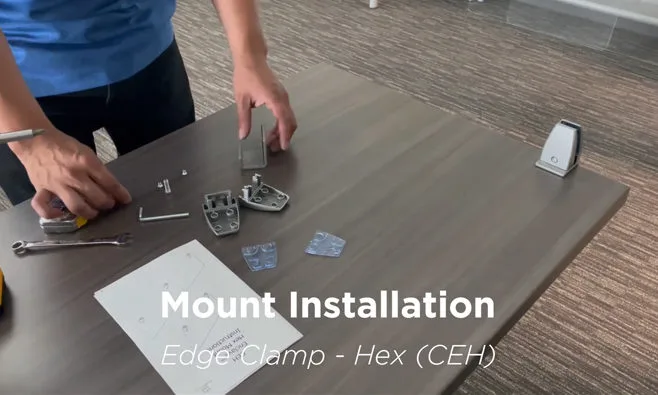
A monthly two-minute check keeps alignment honest. Walk behind the desk, run a finger along the clamp jaws, and look for any gap between the pad and the desktop. Loose clamps are easier to fix before they shift a full panel.
Retighten any clamp that moves under light hand pressure. Don't crank it hard, just snug it back to firm contact. Wipe dust off the desktop surface under each clamp, because grit acts like ball bearings and lets the clamp slide sideways.
If a panel keeps drifting after two or three retightenings, the fix is usually mechanical. Options in order of cost:
- Add a rubber shim between the clamp pad and the desktop.
- Replace soft rubber pads with firmer EPDM or cork pads.
- Move the clamp closer to the desk's metal frame.
- Add a small L-bracket to lock the panel base to the desktop.
- Switch to a clamp rated for a heavier load.
Cycle the desk through its full range once a month and watch for panel movement. If a panel tilts during the cycle, the clamp has lost grip. Fix it that day rather than waiting.
For multi-panel setups, keep a photo of the aligned run on your phone. Compare it against a fresh photo once a month. Small drifts are obvious side by side, but nearly invisible when you look at the panels every day.
Acrylic panels can also warp if they sit in direct sun, which throws off the visual line even when the clamps are tight. Keep panels out of harsh sunlight or use frosted designs that hide minor tilt better.
Frequently Asked Questions
Why do my privacy panels go crooked every time I raise the desk?
Because the frame flexes and the desktop rotates slightly at different heights. Align at your most-used preset, then retighten clamps after a full up-and-down cycle. If drift continues, add firmer clamp pads or move the clamp closer to the desk frame.
Should I align panels at sitting or standing height?
Align at whichever height you use most. For most people that's seated height, since they spend more hours there. If you split time evenly, pick the mid-range preset and accept minor tilt at the extremes.
Can I use adhesive-mounted panels on a standing desk?
You can, but they're risky. Adhesive loses grip faster on a moving surface, especially on laminate or textured desktops. Clamp-mounted panels hold alignment far more reliably on any height-adjustable desk.
How tight should the clamps be?
Snug by hand, not cranked down. You want firm contact between the pad and the desktop, with no visible compression of the surface. Overtightening cracks laminate and strips threads.
If the clamp slips at hand-tight, the clamp itself is the problem.
How often should I recheck panel alignment?
Once a week for the first month, then monthly after that. New setups settle most in the first few days. After a month, the alignment usually holds unless something changes, like a new monitor arm or a heavier load on the desk.
Do heavier panels drift more?
Yes. A 6-pound felt or MDF panel puts more torque on the clamp than a 2-pound acrylic one. Heavier panels need heavier-duty clamps and benefit from shims or brackets.
If your panels are heavy, tighten the settling check to weekly for the first two months.

Similar Posts